Headunit Reloaded Emulator HUR
- 2.1
- Rating
- 100.00K
- Installs
- $4.99
- Price
 Analysis by App-foxy
I tested Headunit Reloaded Emulator HUR as a way to turn an Android tablet or Android-powered unit into an Android Auto display, and my first impression was that it is a very specific tool rather than a general navigation app. It belongs in the Maps & Navigation category, but its real purpose is to reuse a screen you already own instead of buying a complete replacement head unit. That distinction matters: if you want a familiar Android Auto-style dashboard on a spare tablet, it can be useful; if you only need directions on your phone, it is more complicated than necessary.
The app is developed by AAWireless and costs $4.99. It is rated for Everyone, runs on Android 5.0 or later, and its current version is Headunit Reloaded V8.2 .0. The store shows over 100K installs, alongside a 2.1 average from around 4.6K ratings. I would not ignore that low score, but I also would not treat it as a complete verdict. An emulator that depends on a particular tablet, car setup, cable, wireless configuration, and user expectations can produce very different experiences from one installation to another.
How readable and manageable is the driving screen?
In everyday use, the main advantage is the larger display. A tablet mounted in a sensible position can make maps, route lines, and interface controls easier to see than a phone placed low in a cup holder. That can help people who find small text tiring or who prefer a broader view of the route. The benefit comes from the screen you choose, though, not from a universal display standard built into the app. A dim, reflective, or poorly mounted tablet may be harder to read than a good phone.
You May Also Like

 Blood Strike: 2.5 Anniversary
Blood Strike’s Loadouts Turn Every Drop Into a Tactical Gamble
A close look at Blood Strike’s custom loadouts: how fast access to signature weapons reshapes its battle royale rhythm, rewards preparation, and narrows the gap between fights.

 Pandora - Music & Podcasts
Pandora’s Music Is Easy to Start, but Harder to Recover
Pandora’s strength is its low-effort path from a seed to a station. Its weak spot is how much confidence it asks you to place in connection, setup, and quiet recovery.

 8 Ball Pool
 Is Built on Rivalries, Rematches, and Routine
A close look at the rivalries, rematches, shared routines, and unanswered safety questions that turn a quick pool match into a persistent mobile community.

 Samsung Music
’s Quiet Strength Is Playing What You Already Own
Its reach comes less from spectacle than from dependable access to a personal library. That simplicity is both the app’s strongest retention engine and its ceiling.

 AccuWeather: Weather Radar
AccuWeather Review: A Quick, Clear Forecast for Everyday Decisions
For everyday plans, the best forecast is the one you can understand quickly. AccuWeather makes rain timing, radar, and local conditions easy to act on, with a few trade-offs.

 Hill Climb Racing
Why Hill Climb Racing Still Turns Crashes Into One More Run
A tiny car, a bumpy hill and one more upgrade: Hill Climb Racing keeps resurfacing because its simple chaos makes every near-miss feel personal.
More From Our News Desk



I found the experience most comfortable when the tablet was prepared before moving: brightness adjusted, the desired navigation app ready, and the cable or connection arranged so it did not cross the driver’s reach. Once the dashboard is visible, the familiar Android Auto layout is easier to understand than a full tablet desktop. Large cards and simplified driving controls reduce the temptation to search through ordinary Android menus while the vehicle is moving.
There is an important trade-off here. A bigger screen does not automatically mean better navigation. If the tablet is too close, it can dominate the windshield view; if it is too far away, the text may still be difficult to read. Reflections from sunlight can also erase map details. I recommend testing the mount while parked at different times of day, especially if the person using it has reduced contrast sensitivity or relies on larger text.
Headunit Reloaded Emulator HUR is not a replacement for careful interface setup. Android’s own display scaling, the navigation app’s map choices, and the tablet’s aspect ratio all influence readability. I would avoid cramming extra widgets or unrelated apps onto the screen. The strongest setup is usually the simplest one: navigation, audio controls, and only the communication tools that are genuinely needed.
Navigation habits that make a difference
One useful workflow is to configure the tablet at home, then make a short stationary test before relying on it for a longer journey. I would check whether the Android Auto screen appears consistently, whether the route can be started without repeated tapping, and whether the chosen audio source behaves as expected. This is more than a convenience check. For someone with limited dexterity, avoiding a sequence of small corrective actions after departure can make the whole system less stressful.
I also prefer voice interaction whenever it works reliably with the connected setup. It can reduce the need to reach toward a mounted screen, which is helpful for drivers who have difficulty with precise touch gestures or sustained arm movement. Still, voice control is not a magic accessibility solution. Road noise, speech differences, Bluetooth behavior, and the phone’s own assistant settings can affect recognition. A user should have a safe fallback, such as pulling over before making a manual change.
The app’s role is to provide the head-unit environment; it does not turn every navigation service into an equally accessible experience. A map application with clear spoken guidance may suit one person better than another with denser visual information. I would choose the navigation software separately, then judge the emulator by how steadily it presents that software on the larger screen.
Motor and sensory considerations
A tablet-based head unit can help users who struggle with small phone controls, but it introduces physical decisions that a normal phone app does not. The mount must be stable, reachable without leaning forward, and positioned so the device does not become a distraction or an obstruction. The charging lead should have enough slack for connection without creating a snagging loop around the gear area or steering controls.
For people with tremors or reduced fine-motor control, large touch targets and a fixed screen position may be easier than holding a phone. The improvement is most noticeable when the user can complete common tasks with one deliberate touch or a voice command. It becomes less attractive when the setup requires repeatedly reconnecting a cable, dismissing prompts, or switching between the emulator and the tablet’s ordinary Android interface.
Sensory needs deserve equal attention. A bright tablet can be uncomfortable for someone sensitive to glare, while a dark screen may be difficult for someone who needs high contrast. Audio alerts can be useful for drivers who do not want to watch the map constantly, but they may be distracting for people sensitive to sudden sounds. I would adjust volume and screen brightness while parked and keep the visual layout uncluttered rather than treating default settings as suitable for everyone.
There is also a practical distinction between using the app in a car and using it on a stationary Android unit. In a parked vehicle, the larger interface can be forgiving and easy to explore. While driving, every extra interaction matters. Someone with limited reach, slower reaction time, or difficulty filtering visual information may benefit from a helper handling setup before departure, even if the person can comfortably use the finished dashboard alone.
Situational access: when the tablet approach earns its place
The clearest use case is an older vehicle with no modern Android Auto display, paired with a spare tablet that can be mounted safely. Instead of replacing the dashboard immediately, I could use the tablet as a dedicated navigation screen. This may appeal to a driver who already knows the Android Auto layout and wants a larger view without learning an entirely different interface.
Another realistic scenario is a passenger who needs a more visible map than a phone provides. The passenger can help set the route while the driver concentrates on the road. In that arrangement, the app’s value comes from turning unused hardware into a shared travel screen. I would still keep the controls within easy reach of the passenger and avoid placing the tablet where it blocks the driver’s view.
It can also suit people who change vehicles or travel in cars with inconsistent built-in systems. A familiar tablet setup may feel more predictable than learning each vehicle’s entertainment interface. However, portability is not the same as instant readiness. The user still needs a suitable mount, power, and a reliable way to connect the phone or Android Auto source. If those pieces are frequently forgotten, the apparent convenience disappears.
For someone who mainly walks, cycles, or uses public transport, this is usually the wrong solution. A conventional navigation app on a phone is simpler, more portable, and designed for direct use. Likewise, a driver whose vehicle already has a dependable Android Auto system may gain little from adding an emulator and another screen. I would consider this app when the existing dashboard is missing, inconvenient, or unusable—not merely because an extra display sounds interesting.
Where the setup can become difficult
The low average rating is a warning to approach installation with patience. An emulator sits between the phone, the Android tablet or unit, the vehicle, and the Android Auto experience. When something fails, it may not be obvious which part is responsible. A user who expects a one-tap installation may become frustrated by connection troubleshooting, screen orientation issues, or behavior that changes after moving between vehicles.
This is especially relevant for people with cognitive disabilities or anyone who depends on a predictable routine. A system that works perfectly at home but needs repeated intervention in the car can create unnecessary pressure. I would not recommend making it the only navigation method until it has completed several short trips without assistance. Keeping a phone-based backup is sensible, particularly for unfamiliar routes.
Older tablets can be attractive because they are inexpensive or already available, but their age may affect responsiveness, battery condition, screen visibility, and charging reliability. The minimum operating-system requirement is Android 5.0, yet meeting that requirement alone does not guarantee a pleasant experience. A technically compatible tablet can still be a poor choice if it becomes hot, slows down, or has a weak battery during use.
There is a second barrier for users who need strong accessibility customization. The emulator presents an Android Auto-style environment, but the final experience depends heavily on the connected device and the apps shown inside it. People who require a very specific screen reader workflow, unusual input method, or extensive visual customization should test their complete setup before paying for a permanent installation. I would not assume that a feature available on the tablet’s regular Android desktop behaves identically inside the driving interface.
Privacy and distraction also deserve a practical mention. A larger screen can make information more visible to passengers and passersby, and a poorly chosen mount can draw attention away from traffic. I would use it only for driving-relevant tasks, silence nonessential notifications where possible, and avoid adjusting the system while the vehicle is moving. The app can support a cleaner dashboard, but it cannot replace safe driving habits.
How it compares with the usual alternatives
Compared with using a phone alone, Headunit Reloaded Emulator HUR offers a potentially larger and more stable dashboard view, provided a tablet is available. The phone-only approach wins on simplicity: fewer devices, fewer cables, and less mounting equipment. For occasional navigation, I would choose the phone. For a dedicated older-car setup, the emulator makes more sense.
Compared with buying a new aftermarket head unit, the app can be the lower-commitment experiment. Reusing a tablet lets someone explore the idea of a larger dashboard before changing the vehicle. The compromise is that a tablet mount and connection routine may look less integrated, and the result depends on the hardware already in hand. A proper head unit is likely better for someone who wants a permanent, tidy installation and does not want to troubleshoot several separate components.
Compared with a manufacturer’s built-in Android Auto display, this is a workaround rather than an integrated system. Built-in hardware generally has an advantage in mounting, power, and startup behavior. The emulator’s strength is flexibility: it can give an Android-powered unit a head-unit role when the vehicle itself does not provide one. That makes it interesting for technically confident users, but less appealing to anyone who values zero setup.
One non-obvious advantage is that the app can extend the useful life of an otherwise idle Android device. That is not the same as making old hardware fast or reliable, so I would judge the tablet first. If it has a clear screen, dependable charging, and a position that supports safe viewing, the reuse case is compelling. If it is sluggish or difficult to mount, buying a better-supported solution may save time and frustration.
Who I would recommend it to
I would recommend it to an Android user who already owns a suitable tablet or Android-powered unit, understands that the project involves setup, and wants an Android Auto-style display in a vehicle without immediately replacing the dashboard. It is particularly appealing when a larger screen improves legibility and when a passenger can help with initial configuration.
I would be more cautious for someone who needs guaranteed consistency, has difficulty solving connection problems, or cannot safely manage a physical mount and charging cable. I would also skip it if the goal is simply turn-by-turn directions on foot or if the current car already has a comfortable, reliable Android Auto screen. In those cases, a standard navigation app or the built-in system is more direct.
Before committing, I would answer four practical questions: Can the tablet be mounted without blocking sight lines? Can it remain powered for the intended journey? Can the user start and change a route without unsafe reaching? And does the connected phone behave consistently across several parked tests? A “no” to any of these questions is a reason to reconsider, not a challenge to overcome while driving.
My final view is mixed but positive for the right audience. Headunit Reloaded Emulator HUR is not a universal accessibility upgrade and it is not the easiest way to get navigation. Its value comes from a specific combination of reuse, screen size, and Android Auto familiarity. When those fit, it can make an older vehicle more usable and give people who struggle with small displays a more comfortable visual workspace.
The best reason to choose it is practical reuse, not novelty. I would install it only after planning the mount, testing the connection, and checking the complete setup from the perspective of the person who will actually use it. With that preparation, the $4.99 purchase can be worthwhile. Without it, the extra tablet may create more barriers than it removes, and a phone or integrated head unit will probably be the kinder choice.
FAQs for Headunit Reloaded Emulator HUR
01What is Headunit Reloaded Emulator HUR used for?
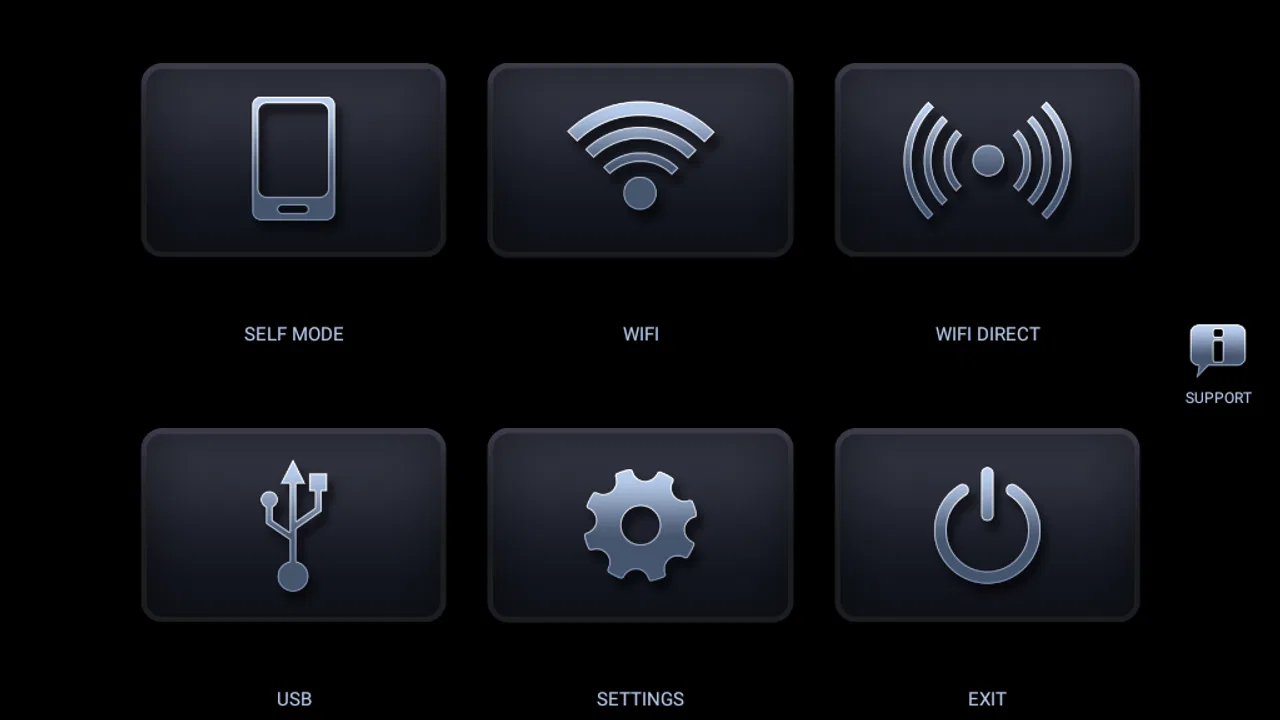
Headunit Reloaded Emulator HUR turns a compatible Android phone or tablet into an Android Auto-style head unit. It is designed for use in a vehicle, allowing you to display supported navigation, music, messaging, and other Android Auto features on a larger screen. The app is especially useful for cars that do not have a built-in Android Auto display, although compatibility depends on your device, Android version, connection method, and vehicle setup.
02How do I connect my Android phone to Headunit Reloaded Emulator HUR?
The app can generally be used by connecting the phone running Android Auto to another Android device running Headunit Reloaded Emulator HUR. Depending on the hardware and version, users may connect through a USB cable, Wi-Fi, or a wireless Android Auto setup. Initial configuration can require enabling developer options, adjusting Android Auto settings, granting permissions, and ensuring both devices communicate correctly, so setup may take some experimentation.
03Does Headunit Reloaded Emulator HUR work with every Android phone, tablet, or car?
No, universal compatibility should not be expected. Performance depends on the Android device acting as the display, the phone providing Android Auto, available USB or wireless support, screen resolution, permissions, and the Android Auto version installed. Some vehicles and aftermarket systems may also interfere with the connection. Before downloading, check the app’s current compatibility notes and be prepared to test your particular combination of devices.
04What features can I use with Headunit Reloaded Emulator HUR?
When the connection works correctly, Headunit Reloaded Emulator HUR can provide access to familiar Android Auto functions such as turn-by-turn navigation, music and podcast playback, hands-free communication, voice commands, and supported messaging applications. The exact selection is controlled by Android Auto and the apps installed on your phone. It is not a replacement for every Android app, because Android Auto limits which applications can appear while driving.
05Is Headunit Reloaded Emulator HUR safe and worth downloading?
The app can be a practical solution for adding an Android Auto display to an older vehicle or using a spare Android tablet as a temporary head unit. However, safe use requires mounting the device securely, keeping cables away from driving controls, and configuring everything before moving. Drivers should avoid interacting with the screen while driving and use voice controls whenever possible. Results vary by hardware, so the app is best for users comfortable with technical setup and troubleshooting.
Pros
- Turns an Android phone or tablet into an Android Auto-compatible head unit.
- Supports wired and wireless Android Auto connections on compatible devices.
- Offers customizable screen layouts
- resolutions
- and display settings.
- Includes GPS
- audio
- and microphone options for a more complete car setup.
- Useful for testing Android Auto without purchasing a dedicated head unit.
Cons
- Requires careful setup and permissions before Android Auto works reliably.
- Performance depends heavily on the phone
- cable
- and car stereo hardware.
- Wireless mode can suffer from connection drops or noticeable audio delay.
- The interface may feel awkward on small screens or lower-powered devices.
- Some advanced features require a paid license or additional configuration.

Headunit Reloaded Emulator HUR
Gallery